


Most teams test UTM tracking by clicking a campaign link and checking whether the parameters appear in the address bar.
That proves almost nothing.
The expensive failures happen later.
The landing page receives the UTMs, but a redirect drops them. The browser never stores them. Consent is accepted, but tracking does not start. The form looks fine, but its hidden fields are blank. The fields are populated, but the form does not send them. The request contains the values, but the CRM mapping throws them away.
Every individual screen can look healthy while the final lead record is useless.
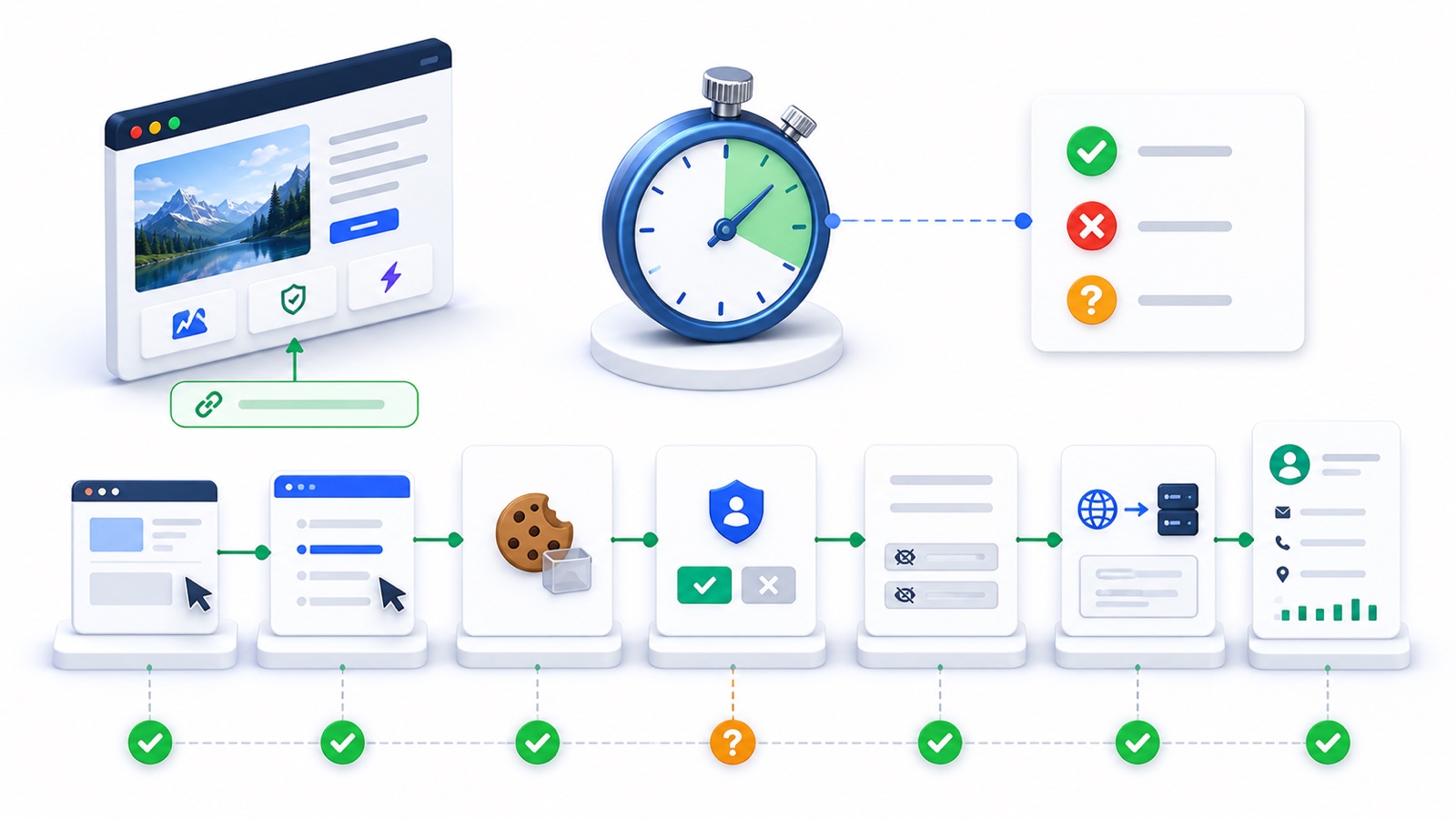
This is the 30-minute audit I would run before trusting a WordPress attribution setup. It follows one synthetic lead from the campaign URL to the system where the lead is supposed to arrive. The point is not to inspect every setting. The point is to collect enough evidence to identify the exact handoff where attribution breaks.
If you can, run it with access to:
- the live landing page and conversion form
- your browser’s developer tools
- the form notification inbox, CRM, or email platform
- the site’s consent banner
- a phone or a second browser
You do not need to be a developer. You do need to resist the urge to stop at "the form submitted."
What counts as a pass
For this audit, a clean result means the same test values survive every relevant stage:
campaign URL → first landing → browser storage → internal navigation → form field → submission request → destination record
Use values that cannot be confused with real campaign data:
utm_source=audit_source
utm_medium=audit_medium
utm_campaign=audit_2026_08_20
utm_content=audit_button_a
utm_term=audit_term
Your complete test URL will look like this:
https://example.com/landing-page/?utm_source=audit_source&utm_medium=audit_medium&utm_campaign=audit_2026_08_20&utm_content=audit_button_a&utm_term=audit_termReplace the domain, path, and date. Keep the values obvious.
Do not use a real customer’s email address. Use a test lead your team can safely delete, and add something recognizable such as UTM audit to the name or message.
Before the clock starts
Choose one real conversion path.
Do not audit the homepage if paid traffic lands somewhere else. Do not test the newsletter form if the campaign sends people to a demo request. Pick the landing page, navigation route, form, and destination that matter.
Write down:
- the original campaign URL
- the page where the visitor should land
- one internal page to visit before converting
- the form to submit
- the final destination to inspect
- whether your site is meant to wait for marketing consent
Open developer tools before loading the test URL. In Chrome, use Network, enable Preserve log, and keep the Console visible when needed. Chrome’s own documentation confirms that Preserve log keeps requests across page loads and redirects, while the Network panel exposes request payloads. The Application panel is where you inspect cookies and other browser storage. (Chrome Network reference, Chrome Application panel)
Now start the timer.
Minutes 0–3: Establish a clean test session
Start with a clean browser state. Old attribution cookies can make a broken first landing look healthy.
The quickest route is a new private window. In Chrome, close every existing Incognito window first, then open a new one. Chrome treats Incognito as a separate session and discards that session’s cookies and site data when all Incognito windows close. (Google Chrome Help)
If you prefer a normal browser window, delete the test site’s cookies and storage before starting.
Then:
- Open developer tools.
- Go to the Network panel.
- Turn on Preserve log.
- Clear the Network log.
- Confirm that you are signed out unless the real conversion path requires a login.
Checkpoint: You have a fresh session with no previous campaign values.
Evidence to collect: A screenshot of the site’s empty cookie/storage state, or a note confirming that all private windows were closed before the test.
Minutes 3–6: Test the campaign URL and redirect integrity
Paste the full test URL into the address bar and load it once.
Do not manually repair the URL if it changes.
Watch the address bar and the Network log. If the request redirects through HTTP to HTTPS, www to non-www, a localization layer, a trailing-slash rule, or another domain, inspect the chain.
You want to know:
- Did the first request contain all five test parameters?
- Did every redirect point to the intended host and path?
- Did the final landing request still contain the parameters?
- Did the page land on the expected campaign page rather than a homepage or 404?
A parameter disappearing from the visible URL after capture is not automatically a tracking failure. UTM Grabber’s current documentation says its model stores values in browser cookies so they can remain available even when later site URLs do not contain UTMs. But a redirect that removes the parameters before the capture code runs is a real problem. (UTMs disappear in URL)
Pass: The first browser request contains the correct values, the redirect chain is expected, and the intended landing page loads with enough opportunity for the site’s tracking code to capture them.
Needs investigation: The final URL no longer shows UTMs, but storage checks in the next step prove they were captured.
Fail: An external redirect, malformed URL, security rule, or canonicalization step drops or changes the values before capture.
Evidence to collect: The original URL, final URL, redirect status codes, and a screenshot or exported Network entry showing the chain.
Minutes 6–9: Verify first-landing capture and browser storage
Before clicking anywhere, open Application → Storage → Cookies for the site. If your implementation uses local or session storage instead, inspect those sections too.
Search for your exact test strings, especially:
audit_sourceaudit_mediumaudit_2026_08_20
If you use UTM Grabber, its documented model stores UTM variables in the visitor’s browser and makes them available across the site through its supported shortcodes. The current shortcode list includes last-touch and first-touch UTMs, click IDs, landing-page data, referrer data, and other attribution values. (Native WP Shortcodes)
Check the values, domain, path, and expiry. A cookie that exists on the wrong subdomain or path may not be available on the form page.
Also note the first landing page if your setup records one. It should reflect this clean session’s actual entry page, not a page from an earlier test.
Pass: The expected values are present in the storage mechanism your implementation uses, under the correct site scope.
Needs investigation: The values are not stored yet because your documented consent policy deliberately blocks storage until approval. Continue to the consent step.
Fail: The site is meant to capture immediately, but the test values are absent, truncated, or replaced.
Evidence to collect: A screenshot of the stored names, values, domain, path, and expiry. Do not include unrelated session or authentication cookies in a shared report.
Minutes 9–12: Test navigation persistence
Click to the internal page you selected, then continue to the conversion form without manually adding UTMs to either URL.
That is deliberate.
The whole point of browser-side attribution storage is that a visitor should not need campaign parameters attached to every internal link. UTM Grabber’s documentation explicitly says stored values remain accessible on other pages even when the current URL has no UTM variables. (Native WP Shortcodes)
On the form page, inspect storage again.
Pass: All expected campaign values still exist and match the first landing.
Fail: The values disappear, reset to Direct, change after navigation, or become inaccessible on a different subdomain.
Evidence to collect: The internal route followed, the final form URL, and a second storage screenshot.
If the form lives on another domain or inside an iframe, mark this step Needs investigation unless your implementation explicitly passes attribution across that boundary. First-party cookies from the WordPress domain do not prove that an external form can read the values.
Minutes 12–16: Test consent behavior
This is not a legal audit. It is a behavior audit.
First, confirm which behavior the site is supposed to have:
- Immediate capture: attribution is stored on landing regardless of banner choice.
- Consent-gated capture: attribution is not stored until the visitor grants the relevant consent.
Do not call one a failure because you expected the other. Compare the browser to the site’s approved design.
For a consent-gated UTM Grabber setup using WP Consent API, the current documentation says no UTM parameters should be saved before consent, tracking should begin immediately after marketing consent, and no reload should be required. It also warns against enabling a direct consent integration and WP Consent API for the same job. (WP Consent API integration)
Run the relevant sequence:
- Start another clean session with the same test URL.
- Before choosing, inspect storage.
- Reject or leave marketing consent unapproved and inspect again.
- Start clean once more.
- Accept the relevant category.
- Inspect storage immediately, without refreshing.
Pass for consent-gated capture: No campaign storage before approval; correct values appear immediately after approval; the form path continues to work.
Pass for immediate capture: Stored behavior matches the site’s intended configuration and internal policy.
Fail: Tracking starts when it is configured to wait, never starts after approval, requires an unexplained refresh, or produces conflicting values.
Evidence to collect: The expected consent model, banner choice, before-and-after storage screenshots, and whether a reload was required.
For consent architecture and revocation testing, use the full cookie consent and UTM tracking guide. Do not spend the remaining audit trying to redesign the CMP.
Minutes 16–20: Inspect the form’s hidden fields
Now inspect the actual form element.
Hidden inputs are invisible to visitors, not to developer tools. Expand the form’s HTML and search for:
utm_source
utm_medium
utm_campaign
utm_content
utm_term
The exact field labels may differ in the CRM, but the HTML needs some deliberate mapping between the stored values and the form fields.
For a simple implementation, you might expect to see something like:
<input type="hidden" name="utm_source" value="audit_source">
<input type="hidden" name="utm_medium" value="audit_medium">
<input type="hidden" name="utm_campaign" value="audit_2026_08_20">
UTM Grabber supports native WordPress shortcodes and input-field wrappers for places where a shortcode cannot safely sit inside raw HTML. The wrapper documentation is worth checking when a page builder or editor prints the shortcode itself instead of the value. (Input Field Wrapper)
Do not stop after finding the field names. Check their live value properties after the page and form scripts finish running.
Pass: The expected hidden fields exist once, use the intended names, and contain the exact test values.
Needs investigation: The form is in a third-party iframe, so the parent page’s HTML does not expose the fields.
Fail: Fields are missing, duplicated, blank, filled with stale values, or contain literal text such as .
Evidence to collect: A screenshot or copied HTML snippet showing the field names and values. Redact personal data.
Minutes 20–24: Inspect the real submission payload
Fill the visible fields with test data, return to Network, clear the log, and submit once.
Select the request that actually sends the lead. Depending on the form, it may be:
- a normal document request
fetchor XHR- a WordPress AJAX request
- a REST API request
- a request to a third-party form service
Open Payload, Form Data, or the request body. Chrome’s Network tools display submitted payloads in a human-readable form when possible. (Chrome Network reference)
Search for the audit values.
This is one of the most important checks in the entire article.
A populated hidden field proves that the browser had the value. It does not prove that the form serialized and sent it.
Pass: The outgoing request contains the expected field names and exact test values, and the server returns the form’s normal success response.
Fail: Values are missing from the request, renamed unexpectedly, blank, stale, or rejected by an error response.
Evidence to collect: The request URL, method, status, timestamp, and the relevant attribution lines from the payload. Never publish passwords, authorization headers, nonces, or unrelated personal data.
Minutes 24–27: Verify the CRM, email, or final destination
Open the system where a real team member would inspect the lead.
Find the synthetic submission by its email address, timestamp, or UTM audit marker. Then compare every value with the browser payload.
| Field | Expected value |
|---|---|
utm_source | audit_source |
utm_medium | audit_medium |
utm_campaign | audit_2026_08_20 |
utm_content | audit_button_a |
utm_term | audit_term |
Check the actual contact or deal fields, not only the notification email. An email can show data that never made it into the CRM field used for reporting. The reverse can happen too.
Pass: The destination record contains the exact values in the intended reportable fields.
Needs investigation: You cannot access the destination within the audit window, the integration processes asynchronously, or the values appear only in an email body.
Fail: The browser sent correct values, but the destination omitted, transformed, or mapped them to the wrong fields.
Evidence to collect: The record ID or message ID, timestamp, destination field names, and values. Redact the test email if the report will be shared.
Minutes 27–29: Check cache, optimization, and JavaScript clues
You have two minutes. Use them to locate a layer, not to reconfigure production.
In Network, inspect the first document request and note cache-related response headers. UTM Grabber’s troubleshooting documentation recommends this check to distinguish server or edge caching from a WordPress cache plugin. (Common Troubleshooting Tips)
Then reload the test path with the Console open. Look for errors tied to:
- the attribution script
- the form script
- the consent manager
- blocked resources or CORS
- an optimization bundle that fails before field population
Chrome’s Console shows browser and JavaScript errors with stack traces, which gives a developer a starting point. (Chrome Console reference)
Pass: No relevant errors appear, and the earlier end-to-end test succeeds on a normal cached page.
Needs investigation: The page is cached or scripts are minified, but the audit does not yet prove that either caused a failure.
Fail: Disabling one identified optimization in a safe test environment restores capture or field population. Do not toggle production settings casually just to earn a cleaner table.
Evidence to collect: Cache headers, script filenames, exact error text, and timestamps.
For the deeper version, use the separate guide to WordPress hosting and cache-related UTM failures. The point here is to avoid blaming "cache" without evidence.
Minutes 29–30: Run one variation
Use the final minute for one fast second environment:
- open the same test URL on a phone
- use a second browser
- use a genuinely fresh private session
- switch from Wi-Fi to cellular if an edge or regional issue is suspected
You do not need to complete another CRM submission unless the first steps differ. Check the redirect, first-landing capture, and form field population.
This variation catches obvious dependencies on an old browser session, an extension, desktop-only JavaScript, or a browser-specific consent state.
Pass: The second environment produces the same early-stage values.
Needs investigation: The result differs and there is not enough time to isolate why.
Evidence to collect: Device, operating system, browser, private/normal mode, and the first step where results diverged.
Reusable 30-minute audit results table
Copy this into your ticket, QA document, or launch checklist.
| Time | Check | Expected evidence | Result | Notes / evidence link |
|---|---|---|---|---|
| 0–3 | Clean session | No prior site attribution data | Pass / Fail / Needs investigation | |
| 3–6 | Campaign URL and redirects | Original parameters survive until capture | Pass / Fail / Needs investigation | |
| 6–9 | First-landing capture | Correct values in intended browser storage | Pass / Fail / Needs investigation | |
| 9–12 | Navigation persistence | Same values remain on the form page | Pass / Fail / Needs investigation | |
| 12–16 | Consent behavior | Actual behavior matches approved design | Pass / Fail / Needs investigation | |
| 16–20 | Hidden-field population | Fields exist and contain exact test values | Pass / Fail / Needs investigation | |
| 20–24 | Submission payload | Outgoing request includes exact values | Pass / Fail / Needs investigation | |
| 24–27 | CRM/email destination | Final record contains reportable values | Pass / Fail / Needs investigation | |
| 27–29 | Cache and Console | Headers recorded; no relevant errors | Pass / Fail / Needs investigation | |
| 29–30 | Browser/device variation | Early-stage result is consistent | Pass / Fail / Needs investigation |
Use the outcomes honestly:
- Pass: You observed the expected evidence.
- Fail: You observed evidence that contradicts the expected behavior.
- Needs investigation: The step was inaccessible, asynchronous, ambiguous, or outside the chosen test path.
"I did not see a problem" is not the same as Pass.
What to do after a failure
Start at the first failed checkpoint. Later failures may only be consequences.
The URL or redirect fails
Inspect the ad destination, link shortener, redirect plugin, HTTPS or domain canonicalization, localization rules, and security layer. Fix the point that first changes the parameters, then restart with a clean session.
Browser capture fails
Confirm that the attribution script loads on the landing page, the domain setting is correct, consent is not unexpectedly blocking it, and no earlier JavaScript error stops execution. If you use UTM Grabber, its settings include a domain option because automatic domain detection can fail on some servers. (Setting domain name)
Navigation persistence fails
Compare hostname, protocol, subdomain, cookie domain, and cookie path between landing and form pages. Treat a cross-domain or iframe transition as its own integration problem.
Consent behavior fails
Write down the expected consent model before changing anything. Verify the selected category and event. Remove overlapping consent paths. Test rejection, acceptance, and revocation in clean sessions.
Hidden fields fail
Check the form integration’s required field names, HTML classes, shortcodes, or wrappers. Look for duplicate forms, delayed rendering, multi-step replacements, and third-party iframes. A field added in the builder is not useful until the live page contains it and gives it a value.
The payload fails
The problem is now between the live field and the form’s serialization logic. Check whether the builder excludes hidden or disabled inputs, renames fields, submits a different form instance, or uses an allowlist.
The destination fails
If the request contains the values but the CRM does not, stop changing WordPress tracking. Inspect the webhook, automation, parser, API request, field types, internal field names, and overwrite rules downstream.
That distinction saves hours.
What this audit can and cannot prove
A clean audit gives you meaningful evidence that one synthetic visitor, on one chosen route, at one point in time, carried known attribution values from landing to destination.
That is useful.
It does not prove:
- every landing page loads the same scripts
- every form uses the same mapping
- every consent category or regional banner behaves identically
- Safari, Firefox, Chrome, in-app browsers, and mobile WebViews all behave the same
- first-touch and last-touch overwrite rules match your reporting policy
- offline imports, duplicate contacts, CRM automations, and revenue attribution are correct
- your consent design is legally sufficient
- the setup will survive the next plugin, theme, cache, form, or CMP update
Thirty minutes is a smoke test with evidence, not a certification.
For a business-critical funnel, repeat the workflow across the highest-spend landing pages, every form technology, major browser families, consent choices, and first-touch/return-visit scenarios. Run it again after material changes to redirects, domains, consent, caching, forms, or CRM mappings.
Where UTM Grabber fits
I built HandL UTM Grabber around the part of this workflow WordPress sites usually struggle with: capture attribution when the visitor arrives, keep it available while they browse, and pass it into the conversion systems that matter.
That reduces implementation work. It does not remove the need to test.
No plugin can prove that your redirect preserves the query string, your specific form sends the field, your webhook maps it, and your CRM stores it in the field used by reporting. Those are separate handoffs owned by separate systems.
That is why this audit follows the data instead of checking whether a plugin is active.
The plugin being active is not the outcome.
The right values reaching the final lead record is the outcome.