Google Sheets as a Lightweight UTM Audit Log
Attribution breaks quietly.
That is the annoying part.
The ad click can work. The landing page can load. The form can submit. The CRM can create a lead. Everyone can see a new contact in the pipeline.
And still, the useful campaign data can disappear somewhere in the handoff.
This is why I like having a simple audit log outside the CRM.
Not a complicated warehouse.
Not a big attribution platform.
Not another dashboard that hides the raw evidence behind a pretty chart.
For many WordPress lead generation setups, a Google Sheet is enough to answer the first question:
Did the attribution data actually arrive when the lead converted?
That is the job of a lightweight UTM audit log.
It is not meant to replace your CRM, analytics platform, ad platform, or reporting database. I would not use it as the source of truth for revenue. I would not let five teams manually edit it until nobody trusts it.
But as a debugging layer, it is very useful.
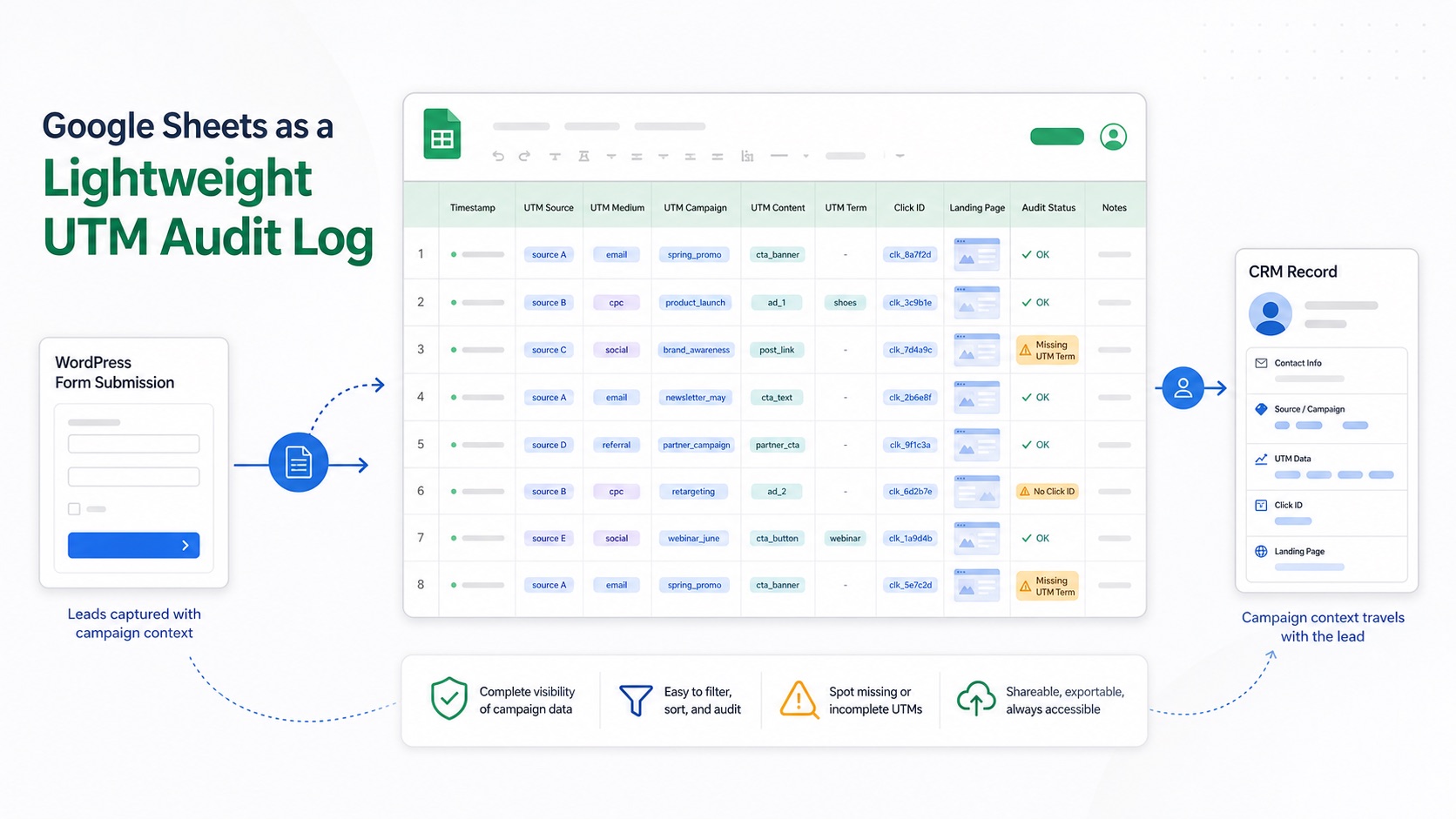
One row per form submission.
Raw UTM values.
Click IDs.
Landing page.
Referrer.
Conversion URL.
Timestamp.
The fields that were supposed to travel into the CRM.
When something goes wrong, that row gives you a place to look before everyone starts guessing.
The short version
If I am using Google Sheets as a UTM audit log, I want it to do a few very specific things:
| Audit log decision | What I want |
|---|---|
| Purpose | Debug the attribution handoff, not replace the CRM |
| Row structure | One row per form submission, booking, signup, or qualified conversion |
| Raw values | Preserve the original UTM and click ID values exactly as submitted |
| First and last touch | Store first-touch and last-touch fields separately |
| Page context | Capture landing page, conversion URL, original referrer, and latest referrer |
| Handoff visibility | Compare the form payload against the CRM record, Zapier step, webhook, or email notification |
| Sheet behavior | Append rows automatically and avoid manual edits to raw columns |
| QA workflow | Use filters, helper columns, and test rows to spot missing fields quickly |
| Privacy | Restrict access and avoid storing sensitive personal data unless there is a clear reason |
| Exit point | Move to a real database or warehouse when volume, security, or reporting complexity outgrows Sheets |
That table is the whole idea.
A Google Sheet is not magic.
It is just a simple place to preserve evidence.
And in attribution work, evidence matters.
Why I like Google Sheets for attribution QA
I do not like debugging attribution from the final dashboard.
By the time a lead appears in a CRM report, a lot has already happened.
The visitor landed.
The tracking values were captured or missed.
The form fields were populated or left blank.
The form submitted.
The integration ran.
The CRM mapped the fields.
The reporting view transformed the data.
If the final report says the lead came from "Direct" or "Website" or nothing at all, that does not tell me where the failure happened.
Google Sheets gives me a boring middle layer.
I like boring middle layers.
They make debugging faster.
If the Sheet row has utm_source=google but the CRM record is blank, the capture probably worked and the CRM mapping probably failed.
If the Sheet row is also blank, the issue is earlier. Maybe the hidden fields were not added. Maybe the field names do not match. Maybe a redirect stripped the query string before capture. Maybe consent timing delayed tracking. Maybe the form was embedded somewhere that never received the values.
Those are different problems.
A Sheet makes them easier to separate.
This is not a reporting strategy
I want to be clear about the boundary.
Google Sheets can be a good audit log.
It is not automatically a good attribution system.
It is too easy to turn a useful debugging sheet into a messy shadow CRM.
That usually happens like this:
- Someone adds raw lead details.
- Someone else adds manual campaign notes.
- A sales person edits a source field.
- A marketer adds a color-coded status column.
- A founder asks for revenue to be added.
- A Zap starts updating rows instead of appending rows.
- Three formulas break.
- Nobody knows whether the data is raw, normalized, corrected, or guessed.
That is when the Sheet stops helping.
My rule is simple:
Use the Sheet to audit the handoff.
Do not let it become the handoff.
The CRM should still be the operational system. Analytics should still handle analytics. Your paid platforms should still track ad performance. A warehouse or database should take over when the data needs to scale.
The Sheet is there so you can inspect what actually happened when the lead submitted.
Start with the data path
Before building the Sheet, I want to understand the path the data is supposed to travel.
For a WordPress form, the basic path usually looks like this:
- Visitor lands on a tagged URL.
- UTM values and click IDs are captured.
- The values are stored in the visitor’s browser.
- Hidden fields in the form are populated.
- The form submission sends those hidden fields.
- Zapier, Make, a webhook, native integration, or custom code sends the data somewhere else.
- The CRM creates or updates the lead.
- A Google Sheet receives a copy of the raw submission for auditing.
That last part is important:
The Sheet receives a copy.
It should not be the only place the lead exists.
It should not be the only system responsible for creating the CRM record.
It is a witness.
That is why I like append-only rows. Each conversion creates a new row with the data that existed at the time of submission. If something changes downstream, the row still shows what the form or automation received.
What I would put in the Google Sheet
The best UTM audit log is not the biggest one.
The best one is the one that captures enough raw context to answer useful questions later.
Here is the column set I would start with:
| Column group | Example columns | Why it matters |
|---|---|---|
| Audit metadata | submitted_at, audit_source, form_name, form_id, page_title | Helps identify where the row came from |
| Lead reference | lead_email, lead_id, crm_record_id | Helps match the row to the CRM without overloading the Sheet with personal data |
| Last-touch UTMs | utm_source, utm_medium, utm_campaign, utm_term, utm_content | Shows the latest campaign values captured before conversion |
| Click IDs | gclid, fbclid, msclkid | Helps diagnose ad-platform attribution issues |
| First-touch UTMs | first_utm_source, first_utm_medium, first_utm_campaign, first_utm_term, first_utm_content | Keeps origin separate from the latest click |
| Page context | handl_landing_page, handl_url, handl_original_ref, handl_ref | Shows where the visitor started and where they converted |
| Traffic classification | traffic_source, first_traffic_source, organic_source_str | Useful for paid, organic, referral, direct, and social review |
| Handoff status | zapier_task_id, webhook_status, crm_match, notes | Helps debug the automation layer |
I do not always need every field.
For a small site, I might start with:
submitted_atform_namelead_emailutm_sourceutm_mediumutm_campaignutm_termutm_contentgclidfbclidmsclkidhandl_landing_pagehandl_original_refhandl_urlhandl_refcrm_record_idcrm_match
That is already enough to answer a lot of questions.
The point is not to hoard fields.
The point is to preserve the fields you would otherwise wish you had after something breaks.
Preserve the raw values
This is one of the biggest mistakes I see in tracking spreadsheets.
People try to clean the values too early.
They turn google into Google.
They change paid_social into Paid Social.
They rewrite campaign names so the Sheet looks nicer.
They manually fill blanks because they "know" where the lead came from.
That defeats the purpose of an audit log.
An audit log should show the raw payload.
If a campaign URL used utm_source=Google with a capital G, I want to see that.
If someone accidentally used utm_medium=paidsocial instead of paid_social, I want to see that too.
If gclid is blank, I do not want someone cleaning the row into a more comfortable lie.
You can add helper columns later.
For example:
| Raw column | Helper column |
|---|---|
utm_source | normalized_source |
utm_medium | normalized_medium |
utm_campaign | campaign_group |
gclid | has_gclid |
crm_record_id | crm_match |
That is fine.
But the raw columns should stay raw.
If you need a corrected version, create a corrected column. Do not overwrite the evidence.
Make the Sheet append-only
For audit purposes, append-only is the safest default.
Every conversion creates a new row.
No automation should casually overwrite old rows.
No one should manually sort the live sheet in a way that breaks formulas.
No one should edit raw UTM values because a campaign manager wants the report to look cleaner.
If the team needs a prettier view, create a second tab.
I usually think in three tabs:
| Tab | Purpose |
|---|---|
raw_submissions | Append-only rows from forms, Zapier, webhooks, or automation |
qa_view | Helper formulas, filters, missing-field checks, and simple status flags |
notes | Column definitions, test URLs, expected values, and owner notes |
That keeps the raw log clean while still making it useful.
The qa_view tab can flag things like:
- missing
utm_source - missing
utm_campaign gclidpresent bututm_sourcemissing- paid medium present but no click ID
- first-touch fields missing
- landing page missing
- CRM record ID missing
- duplicate test submissions
Nothing fancy is required.
The Sheet does not need to become a dashboard.
It just needs to make broken handoffs visible.
How the data gets into Google Sheets
There are a few ways to do this.
The simplest path depends on the form and stack.
For a native WordPress form, I usually start with hidden fields.
The Contact Form 7 UTM tracking docs show this clearly. The integration can add hidden fields for values like:
utm_sourceutm_mediumutm_termutm_contentutm_campaigngclid
The same docs also explain that those values can be included in email notifications and sent through Zapier to downstream tools, including Google Sheets.
That is the model I care about.
Capture the values.
Put them into fields.
Send those fields somewhere that can preserve the raw submission.
For many teams, that "somewhere" is Zapier.
The older Contact Form 7 to Zapier documentation shows the basic idea with hidden fields and a Zapier webhook. The details of your stack may differ, but the audit principle is the same:
The automation should receive the UTM fields and append them into the Sheet.
If you are using Make, n8n, a direct webhook, or custom API code, the same logic applies.
Do not send only the visible lead fields.
Send the hidden attribution fields too.
The Sheet should receive the same payload the CRM depends on
This is where the audit log becomes useful.
If the Sheet receives a different payload than the CRM, it can still help, but it will be less reliable as an audit tool.
I prefer this pattern:
- The form submission triggers the automation.
- The automation receives the lead fields and attribution fields.
- One step appends a row to Google Sheets.
- Another step creates or updates the CRM record.
- The Sheet stores the automation run ID or CRM record ID when possible.
That gives you a quick comparison point.
If the Sheet row has the UTM values and the CRM does not, the CRM mapping is the suspect.
If both the Sheet and CRM are missing the same values, the issue probably happened before the automation received the payload.
If the Sheet has a row and the CRM has no lead, the CRM action failed.
If the CRM has a lead and the Sheet has no row, the logging step failed or was skipped.
This is not complicated.
That is why it works.
First-touch and last-touch deserve separate columns
I would not mix first-touch and last-touch attribution in the same Sheet columns.
That creates confusion fast.
The native shortcode docs list last-touch UTM values such as utm_source, utm_medium, utm_campaign, utm_term, and utm_content. They also list first-touch versions such as first_utm_source, first_utm_medium, and first_utm_campaign.
Those are not duplicates.
They answer different questions.
Last touch tells me what most recently brought the visitor before conversion.
First touch tells me how the visitor first entered the tracked journey.
If a visitor first arrived from a LinkedIn post, came back later from Google Ads, and then submitted a form, both values can matter.
The audit log should not force that story into one column called source.
Use separate columns.
For example:
| First touch | Last touch |
|---|---|
first_utm_source | utm_source |
first_utm_medium | utm_medium |
first_utm_campaign | utm_campaign |
handl_original_ref | handl_ref |
handl_landing_page | handl_url |
first_traffic_source | traffic_source |
The HandL parameter docs are useful here because they explain the difference between original referrer, landing page, latest referrer, and latest URL.
That matters in an audit log.
If the visitor landed on one page and converted on another, I want both.
What a good test row should prove
When I am setting up a Sheet like this, I do not start with real traffic.
I start with a test URL.
Something like:
https://example.com/demo/?utm_source=google&utm_medium=cpc&utm_campaign=sheet-audit-test&utm_term=test-keyword&utm_content=test-ad&gclid=test123Then I submit the form and check the row.
I want to see:
| Field | Expected value |
|---|---|
utm_source | google |
utm_medium | cpc |
utm_campaign | sheet-audit-test |
utm_term | test-keyword |
utm_content | test-ad |
gclid | test123 |
handl_landing_page | The first page visited |
handl_url | The conversion page |
submitted_at | The actual test submission time |
form_name | The form I tested |
If those values are there, the capture and Sheet logging path probably works.
Then I compare the CRM record.
That second check is important.
The Sheet can be perfect while the CRM mapping is broken.
Or the CRM can be correct while the Sheet logging step forgot a column.
The audit log does not replace QA.
It makes QA easier.
What this catches in real life
A lightweight UTM audit log catches boring problems before they turn expensive.
Here are the ones I see most often.
The hidden fields are missing
The Sheet row arrives, but the UTM columns are blank.
That tells me the automation worked, but the form did not send the attribution fields.
Maybe the hidden fields were never added.
Maybe they were added to the wrong form.
Maybe the field names do not match.
Maybe a form builder changed the IDs.
Either way, the Sheet makes the failure visible.
The CRM mapping drops fields
The Sheet row has the values.
The CRM record does not.
That usually means the form capture worked and the CRM mapping failed.
This is common when a Zap, webhook, native integration, or API step only maps visible fields like name, email, and phone.
Hidden fields are easy to forget.
Click IDs are missing from paid traffic
If the row has utm_source=google and utm_medium=cpc but no gclid, I want to know why.
Maybe auto-tagging is off.
Maybe a redirect dropped the click ID.
Maybe the test URL did not include it.
Maybe the form captured UTMs but not click IDs.
The Sheet gives you a quick place to filter paid submissions and check whether click IDs are actually arriving.
First touch gets overwritten
If first-touch fields and last-touch fields are blended together, the team can lose the original acquisition source.
The Sheet helps catch that early.
If first_utm_source changes every time utm_source changes, something is wrong.
First touch should not behave like last touch.
Landing page context disappears
UTMs tell only part of the story.
The landing page often explains intent.
A lead from utm_campaign=brand-search who landed on the pricing page is not the same as a lead from the same campaign who landed on a blog post and converted later.
This is why I like logging handl_landing_page and handl_url.
One shows where the visitor started.
The other shows where the conversion happened.
The Sheet reveals timing problems
Sometimes the first few test rows work and later rows are blank.
That can point to timing issues:
- a delayed script
- a cached page
- a consent banner path
- a popup form loading late
- a multi-step form rebuilding fields
- an embedded form that does not receive the values
The Sheet will not diagnose everything by itself.
But it gives you a pattern to investigate.
Keep personal data out unless you need it
This is the part people skip because Sheets feel casual.
They should not.
If a Google Sheet contains lead emails, names, phone numbers, campaign data, IP-related fields, user agents, and CRM IDs, it is no longer just a harmless spreadsheet.
It is a data store.
Treat it like one.
My practical preference:
- Store only the lead identifier you actually need for matching.
- Use a CRM record ID when possible.
- Avoid sensitive notes in audit rows.
- Limit who can access the Sheet.
- Keep raw tabs protected.
- Decide how long rows should be retained.
- Make sure the Sheet fits the site’s consent and privacy posture.
I am not turning this into legal advice.
I am saying the operational thing:
Do not create a messy second database of personal data just because it was easy.
The audit log should be useful and restrained.
A simple Google Sheets structure I would use
Here is the structure I would use for a first version.
Tab 1: raw_submissions
This tab receives the automation rows.
Columns:
submitted_at
form_name
form_id
lead_email
crm_record_id
utm_source
utm_medium
utm_campaign
utm_term
utm_content
gclid
fbclid
msclkid
first_utm_source
first_utm_medium
first_utm_campaign
handl_original_ref
handl_landing_page
handl_ref
handl_url
traffic_source
first_traffic_source
automation_run_id
I would protect this tab.
People can view it, but they should not casually edit it.
Tab 2: qa_view
This tab is for review.
It can include helper columns like:
has_utm_source
has_utm_campaign
has_click_id
has_landing_page
has_crm_record
missing_required_fields
qa_status
This is where filters and formulas belong.
If the team wants color coding, put it here.
Tab 3: test_plan
This tab documents expected behavior.
Columns:
test_name
test_url
expected_utm_source
expected_utm_medium
expected_utm_campaign
expected_click_id
form_to_submit
expected_crm_result
last_tested_at
owner
notes
This turns the Sheet into a repeatable QA tool instead of a random dumping ground.
Use the Sheet before launch, not only after something breaks
The best time to use this kind of audit log is before the campaign goes live.
I would include it in the paid campaign QA process.
I already wrote about doing this kind of pre-launch check in A Practical UTM QA Checklist Before Launching Paid Campaigns. A Sheet-based audit log fits naturally into that workflow.
Before launch, I want to know:
- Does the landing URL include the expected parameters?
- Do the values survive redirects?
- Are the hidden fields populated?
- Does the Sheet receive the raw values?
- Does the CRM receive the same values?
- Are click IDs present when they should be?
- Are first-touch and last-touch fields separated?
- Does the test still work on mobile?
- Does the test still work after consent is accepted?
- Does the test still work through Zapier, Make, n8n, or the webhook path?
That list may sound slow.
It is faster than spending money for a week and then discovering every lead has blank attribution.
When Google Sheets is no longer enough
I like Sheets for the first audit layer.
I do not pretend they scale forever.
Move beyond Google Sheets when:
- lead volume makes the Sheet slow or unreliable
- access control needs are more serious
- compliance requirements are stricter
- multiple teams need governed reporting
- automations need retries, queues, and stronger logging
- revenue attribution needs to join with CRM opportunity data
- you need long-term historical storage
- people are constantly editing raw rows
At that point, use a database, warehouse, CRM reporting layer, or proper analytics pipeline.
There is nothing wrong with outgrowing the Sheet.
The Sheet is there to help you learn what needs to be captured and where the handoffs break.
Once the workflow is mature, you can formalize it.
My practical recommendation
If you are serious about UTM tracking on WordPress, create a lightweight audit log before you need one.
Start simple.
One form.
One Google Sheet.
One row per submission.
Raw UTM values.
Click IDs.
Landing page.
Referrer.
Conversion URL.
CRM record ID if available.
Then run a few test submissions and compare:
- The landing URL.
- The form submission.
- The Google Sheet row.
- The CRM record.
- The final report.
That sequence will tell you much more than staring at a dashboard and hoping the numbers are clean.
This is one reason I keep coming back to HandL UTM Grabber for WordPress attribution work. The real value is not just reading a UTM from a URL. The value is making the attribution available later, when the form, booking, signup, or sales workflow actually needs it.
Google Sheets can then become the simple audit trail that proves whether that handoff worked.
Not glamorous.
Very useful.
The bottom line
Google Sheets is not an attribution platform.
But it can be a very good UTM audit log.
Use it to preserve the raw evidence.
Use it to compare the form payload against the CRM.
Use it to catch missing hidden fields, broken Zapier mappings, click ID problems, first-touch confusion, and landing page gaps.
Keep it append-only.
Keep it restrained.
Keep the raw values raw.
When the campaign is live and someone asks, "Why is this lead missing attribution?", you will have somewhere concrete to look.
That is the point.
The audit log does not make attribution perfect.
It makes attribution debuggable.