Why UTM Fields Are Blank Even When the Link Looks Right

The link looks perfect.
It has utm_source, utm_medium, and utm_campaign. You click it. The landing page loads. The form submits. Then the lead appears in your CRM with five beautifully organized blank UTM fields.
This is where teams usually start blaming the wrong thing.
The paid media person blames WordPress. The WordPress person blames the form plugin. The form person blames the CRM. Somebody clears the cache, somebody else rebuilds the URL, and nobody can say where the value actually disappeared.
Here is the uncomfortable truth:
A correct-looking link proves only that somebody constructed a correct-looking link.
It does not prove that the browser reached the site with those parameters intact. It does not prove that a tracking script captured them. It does not prove that consent allowed them to be stored. It does not prove that the form had the right hidden fields. It does not prove that those fields were included in the submission. And it definitely does not prove that the CRM mapped them into the properties you are looking at.
Blank UTM fields are not one problem.
They are the final symptom of a failure somewhere in a chain of handoffs.
This post is how I debug that chain without turning the process into a week-long committee meeting.
The attribution chain you are actually debugging
When a lead converts, the campaign value has already passed through several separate systems:
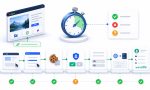
campaign link → redirects → landing page → capture script → browser storage → form field → submission payload → automation → CRM property
That is the useful mental model.
If utm_source=google survives the first six stages but disappears in the webhook, rebuilding the campaign URL will accomplish nothing. If the parameter never reaches the landing page, changing the Salesforce field mapping will accomplish nothing.
The job is to find the last place where the value is still present.
| Checkpoint | What you are proving | If the value is missing |
|---|---|---|
| Final landing URL | The real click arrived with valid parameters | Fix the link, encoding, tracking template, or redirect |
| Browser storage | WordPress and the attribution layer captured the visit | Check the script, consent state, domain, cache, and JavaScript |
| Hidden field in the live form | The form read the stored value | Fix field names, form timing, or the integration method |
| Form submission payload | The form actually sent the value | Fix form serialization, multi-step logic, or submission hooks |
| WordPress entry, email, or webhook | The form backend retained the value | Fix notification, webhook, or automation configuration |
| CRM record or contact property | The destination mapped the value correctly | Fix CRM field mapping, permissions, or overwrite rules |
That table is the whole troubleshooting strategy in miniature.
Do not skip to the last row because that is where you noticed the blank.
My fastest isolation test
Before touching production campaigns, create one boring test that you control.
Use a URL like this:
https://example.com/contact/?utm_source=qa&utm_medium=test&utm_campaign=blank-field-check&utm_content=version-aThe values are deliberately plain. No spaces. No dynamic macros. No accented characters. No link shortener. No ad-platform redirect. You are trying to isolate the website, not reproduce every moving part at once.
Then run this sequence:
- Use a clean browser session and clear the site’s existing cookies and storage.
- Open browser developer tools before loading the test URL.
- In the Network panel, enable Preserve log.
- Load the exact test URL and inspect every redirect.
- Confirm the final document request still contains the expected parameters.
- Check whether the attribution values were stored in the browser.
- Open the live front-end form and inspect its hidden fields.
- Submit the form with developer tools still open.
- Inspect the form request’s payload.
- Check the form entry or notification before checking the CRM.
- Finally, inspect the CRM record and its field history if available.
Chrome’s official DevTools documentation explains how to preserve network requests across page loads and how to inspect both query parameters and form data in the request’s Payload tab. That gives you evidence, not a theory.
The decision tree
If you want the short version, use this:
- The final landing URL is missing UTMs: the problem is before WordPress capture. Inspect the campaign destination, encoding, redirects, and canonicalization.
- The final URL has UTMs, but browser storage does not: the capture layer did not run or was not allowed to store values. Inspect the plugin, JavaScript, consent, cookie domain, and optimization stack.
- Browser storage has the values, but the hidden fields are blank: the form integration is wrong or the form appeared after the population logic ran.
- The hidden fields contain values, but the request payload does not: the form did not serialize or submit those fields.
- The payload contains values, but the WordPress entry or webhook does not: the form’s server-side action or connector dropped them.
- The webhook or form entry contains values, but the CRM is blank: the tracking worked. Fix the destination mapping.
- The result changes between tests: clean up the test environment before diagnosing product behavior.
Now let us go through each failure point properly.
1. The URL can look right and still arrive wrong
Start with the actual URL the browser receives, not the URL shown in an ad manager or spreadsheet.
Google’s current guidance for manually tagged campaign URLs uses a question mark before the first parameter, an equals sign between each name and value, and an ampersand between parameter pairs. Google also recommends using the relevant campaign fields together, especially utm_source, utm_medium, and utm_campaign, rather than tagging a link with one lonely parameter and expecting a complete report. See Google’s campaign URL guidance.
A normal example looks like this:
https://example.com/landing-page/?utm_source=linkedin&utm_medium=paid-social&utm_campaign=summer-demoCommon failures include:
- a second
?where an&should be used - a parameter with no value, such as
utm_source= - a fragment (
#section) placed before the query string - an unexpanded ad-platform macro, such as a literal
{campaign_name} - smart quotes or invisible characters copied from a document
- a value containing
&,#,+,=or another reserved character without proper encoding - an email or social tool rewriting the destination
- a redirect dropping the query string
Do not diagnose a complicated value first. Test with qa, test, and blank-field-check. Once that works, add the real values back.
Inspect the redirect chain, not just the address bar
The campaign click may pass through:
- an ad network
- a link shortener
- an email click-tracking domain
- an HTTP-to-HTTPS redirect
- a
wwwto non-wwwredirect - a trailing-slash or canonical URL redirect
- a language, geolocation, or login redirect
Any one of those can rebuild the destination without carrying the original query string forward.
Open the Network panel, enable Preserve log, and click the real campaign link. Look at each document request in order. If request one contains utm_source=linkedin and request two does not, you have found the break.
There is an important distinction here:
- If UTMs disappear after they were captured and stored, that can be completely fine.
- If a redirect removes them before the landing page’s capture logic can see them, there is nothing for the client-side script to store.
The UTM Grabber documentation confirms that UTMs do not need to remain appended to every internal URL. Once captured, the values are available from browser storage later. The key phrase is once captured.
2. Prove that the capture layer ran
If the final landing URL still contains the test parameters, move one stage downstream.
Did the attribution layer actually capture them?
HandL UTM Grabber is designed around capturing values when the visitor arrives, storing them in the visitor’s browser, and making them available later when a conversion happens. The current native shortcode documentation lists the standard last-touch and first-touch values that can be read across pages.
The fastest way to inspect capture is usually:
- Open DevTools.
- Go to Application → Storage → Cookies.
- Select the site’s origin.
- Filter for the UTM name or the test value.
Chrome documents that workflow in its guide to viewing cookies in DevTools.
For a simple test, I want to see the values I supplied:
utm_source→qautm_medium→testutm_campaign→blank-field-check
If they are present in storage, capture worked. Stop changing the campaign URL.
If they are not present, stay at this layer. Check:
- Is UTM Grabber active on the live site, not just installed?
- Did the relevant JavaScript file load?
- Is the page throwing an error before the population logic runs?
- Is a consent setting intentionally delaying capture?
- Is the cookie being set on the expected domain?
- Is a cache, delay, defer, minification, or script-management rule changing execution?
- Are you testing the correct environment and plugin version?
Do not move to CRM mapping yet. The CRM cannot receive a value that never existed in the browser.
3. Consent timing can create an honest blank
Consent deserves its own checkpoint because a blank field may be exactly what the site was configured to produce.
UTM Grabber’s current WP Consent API integration guide says the plugin collects normally by default, but when the WP Consent API path is enabled it waits for marketing consent, does not save UTM parameters before consent, and begins collecting immediately after consent is granted.
That creates three very different test cases:
- The visitor had already granted the required consent.
- The visitor granted consent while still on the tagged landing page.
- The visitor denied consent or navigated away before the required capture happened.
Those are not interchangeable.
Use a fresh browser state and test the real consent sequence:
- Clear the site’s cookies.
- Visit with your controlled UTM URL.
- Before accepting, check whether the site’s configured behavior says storage should exist.
- Accept the relevant consent category.
- Check whether the UTM values appear immediately.
- Submit the form.
- Revoke consent and verify the expected cleanup behavior.
Also confirm that you are not running overlapping consent integrations. The WP Consent API guide explicitly recommends using one path rather than enabling both a direct CMP integration and the WP Consent API route for the same job.
I covered the broader implementation tradeoff in Cookie Consent Without Losing UTMs on WordPress. For this diagnosis, the point is simpler:
Ask whether the blank is a failure, or the expected result of the consent state you tested.
4. Navigation can separate the landing page from the form
The form is often not on the landing page.
A visitor may land on /pricing/, read /features/, open /contact/, and submit there. That is precisely why browser storage matters. The campaign parameters do not need to follow the visitor through every internal URL if they were captured correctly at the start.
If storage exists on the landing page but disappears before the form page, inspect:
- whether the form is on the same domain
- whether the path moved to a subdomain
- whether the conversion opens on a completely different domain
- the cookie’s Domain, Path, and expiration
- whether consent state changed during navigation
- whether another campaign visit overwrote the last-touch value
UTM Grabber’s domain-setting documentation recommends explicitly configuring the domain because automatic main-domain detection can fail in some server environments.
Also make sure you are looking at the right attribution model.
UTM Grabber exposes both first-touch fields such as first_utm_source and last-touch fields such as utm_source. Its first- and last-touch documentation explains that first-touch values are preserved while last-touch values represent the more recent interaction.
If your test starts with old cookies, you may be comparing today’s last-touch value with last week’s first-touch value and calling the difference a bug.
It is not a useful test until you control the browser state.
5. A form does not capture a field it does not have
This is one of the most common blank-field causes because the visible form still works perfectly.
Name, email, phone, and message submit. The thank-you page loads. The notification arrives. The UTM fields are blank because the form was never configured to receive them correctly.
There are several valid integration patterns:
- hidden fields with recognized names, IDs, or classes
- plugin-specific smart tags or merge tags
- native shortcodes
- wrapper elements that the attribution script recognizes
- vendor-specific hidden variables
- custom JavaScript that writes values after the form renders
Those patterns are not interchangeable.
The general UTM Grabber no-shortcode implementation guide says recognized inputs can be populated through an element’s name, id, or class. A basic field can be as simple as:
<input type="hidden" name="utm_source">But your form builder may require a different setup.
For example, the current Contact Form 7 guide uses generated hidden field tags and separate mail tags. That means a value can exist in the form submission while still being absent from the notification email if the mail template was not updated.
The Breakdance native integration guide requires exact, case-sensitive IDs, tells users to leave the hidden field value empty, and specifically recommends testing the live front end rather than the builder preview.
The practical lesson is not that one form plugin is good and another is bad.
It is that the field syntax must match the integration you are actually using.
Inspect the live field
On the live form page:
- Right-click the form and choose Inspect.
- Find the hidden
utm_sourceinput. - Check its
name,id,class, and currentvalue. - Open any modal or multi-step section before checking fields that load late.
- Confirm there are no duplicate fields with the same ID.
You are looking for something like:
<input type="hidden" name="utm_source" value="qa">If browser storage contains qa but the input value is empty, the break is between storage and the form.
Check for:
utm-sourceinstead ofutm_source- uppercase or mixed-case field IDs where the integration expects lowercase
- a label that looks correct while the machine-facing field name is wrong
- auto-added suffixes from duplicated form fields
- a manually entered default value blocking automatic population
- a form rendered by AJAX, a popup, or a later step after the initial page-load logic
- the wrong shortcode or smart tag
- an old cached version of the form markup
This is not a CRM problem yet.
6. Caching and JavaScript conflicts usually fail one layer earlier
I do not want to repeat the entire hosting and caching discussion here. I already covered that in Why Some WordPress Hosts Break UTM Tracking.
For blank fields, the diagnostic question is:
Did optimization stop capture, or did it stop form population?
Those are different failures.
Use the browser Console and Network panel. Chrome’s Console documentation describes it as the place to view logged messages and run JavaScript while debugging a page.
Look for:
- the UTM Grabber script returning
404, being blocked, or not loading - an uncaught JavaScript error before field population
- a consent or tag-management script delaying execution indefinitely
- optimization changing script order
- delayed JavaScript running only after interaction
- a popup or AJAX form appearing after the population event
- cache headers showing that the test page or request is being served unexpectedly
The official UTM Grabber common troubleshooting guide recommends checking the document request’s cache-related headers and then identifying whether the relevant cache is at the host, CDN, or WordPress-plugin layer.
Do not start by disabling every performance feature on the site.
First prove the failure:
- URL contains UTMs.
- No stored values appear.
- Or stored values exist, but late-loaded form fields stay blank.
Then make the smallest change that addresses that layer.
UTM Grabber also documents an option to disable server-side tracking when server-side caching is believed to be interfering. I would treat that as a targeted configuration decision after the failure is isolated, not as a random first click.
7. Embedded and third-party forms are a separate website
An iframe can look like part of your WordPress page while behaving like a separate site.
I covered the broader implementation risk in Why Third-Party Embedded Forms Need Extra Attribution Attention. For this diagnosis, the important point is that an embed adds another boundary where the values must be passed deliberately.
If the parent page is www.example.com and the form is loaded from forms.vendor.com, the browser treats those as different origins. The browser’s same-origin policy restricts how scripts on one origin can read or change content on another.
In plain English:
The UTM value stored by WordPress does not automatically teleport into a third-party form.
You need an explicit handoff supported by that form or embed:
- append the attribution values to the iframe source URL
- configure the vendor’s hidden fields
- use the vendor’s embed API
- pass values through a supported JavaScript configuration
- use
postMessagewhen both implementations are designed for it
UTM Grabber’s iframe guide documents the utm-src class for appending captured values to an iframe URL. Other platforms need their own integration. For example, the Typeform integration uses Typeform hidden fields in its embed configuration.
Do not inspect only the WordPress page.
Check:
- Does the iframe
srcor embed configuration receive the values? - Does the third-party form define matching hidden fields?
- Does the third-party form submission include them?
- Does the vendor’s own record retain them?
If the parent page has utm_source=qa in storage but the iframe URL and vendor payload do not, the break is the cross-origin handoff.
8. A populated field is not the same as a submitted field
This one is easy to miss.
You inspect the page, see value="qa", and assume the job is done.
Then the CRM is blank.
The next question is whether the form actually sent that input.
Keep the Network panel open and submit the form. Find the request initiated by the submission. Depending on the form, it may be a normal document request, fetch, or XHR. Open Payload and search for:
utm_sourceutm_mediumutm_campaign- your unique test value, such as
blank-field-check
Chrome’s Network reference confirms that the Payload tab shows query-string parameters and form data.
If the field was populated in the DOM but absent from the payload, inspect:
- whether the input has a
nameattribute - whether the field is disabled
- whether the field belongs to the submitted form element
- whether a multi-step form copies only selected fields into the final request
- whether custom JavaScript rebuilds the payload
- whether the form plugin excludes hidden fields from a specific action
- whether duplicate field names cause one value to replace another
If the payload contains the UTM values, the browser and form front end did their jobs.
Move downstream.
9. Find the first backend record
Before opening the CRM, check the earliest server-side evidence available.
That may be:
- the form plugin’s entry
- the notification email
- a webhook log
- a Zapier or Make task history
- a server log
- the third-party form vendor’s response record
This tells you whether the backend retained what the browser sent.
There are a few common patterns:
The form entry has the value, but the email is blank
The notification template probably does not include the correct mail or merge tag.
The form entry has the value, but the webhook does not
The webhook action may be sending a manually selected subset of fields.
The webhook has the value, but the automation output does not
The automation step may be using an old sample, an unmapped field, or a transform that drops empty-looking or unknown keys.
The test submission is blank, but a second submission works
The form or attribution script may be loading in the wrong order, or the first test may have occurred before consent or field initialization.
At this stage, screenshots are less useful than logs. Save the exact payload and the exact timestamp so you can follow one test lead across every system.
10. CRM mapping is where good tracking can look broken
If the UTM value exists in the form entry, webhook, or automation output but the CRM property is blank, stop changing WordPress.
I covered the full naming, storage, and overwrite strategy in CRM Field Mapping for UTMs. Here, I only want to establish whether the mapping is the stage that failed.
The tracking worked.
Now inspect the destination:
- Does the CRM property actually exist?
- Is the connector mapping
utm_sourceto the intended property? - Is it mapping to a similarly named but different field?
- Does the integration user have permission to write that field?
- Is the property type compatible with the incoming value?
- Does a later workflow overwrite the field with blank data?
- Are you looking at the contact, lead, deal, opportunity, or submission object?
- Is the CRM configured to preserve first touch while you are checking a last-touch field?
- Is the value in the record’s property history even if the current value is blank?
I see this a lot with teams that create five CRM properties, add five hidden fields to WordPress, and assume matching labels create a connection.
They do not.
The field must be included in the source payload and explicitly mapped at the destination. A label that says "UTM Source" in two systems is not a mapping.
Also watch for overwrite behavior.
If an existing contact submits a new form, the CRM may:
- preserve the original source
- replace it with the newest source
- ignore blank incoming values
- overwrite a populated value with a blank
- store submission fields separately from contact properties
That is a CRM policy decision, not a UTM capture decision.
11. Test-environment mistakes create fake bugs
A surprising number of "UTM Grabber is inconsistent" reports are really inconsistent tests.
Here are the mistakes I eliminate before trusting any result:
Testing in a page-builder preview
Builder previews may use a different URL, frame, origin, or markup from the live page. Test the published front end.
Reusing old cookies
Old first-touch and last-touch values can make a new test look wrong. Clear site data or use a controlled clean profile.
Testing staging and production as if they share storage
Different domains do not automatically share cookies. Confirm where the attribution was captured and where the form lives.
Testing only the pretty link
Click the same redirecting link a real visitor clicks. Pasting the final landing URL directly can bypass the failure.
Changing several variables at once
Do not switch form plugins, clear every cache, disable consent, and edit the CRM mapping in one test. You will not know which change mattered.
Expecting every field to be populated
If your test URL does not contain utm_term, a blank utm_term may be correct. Not every channel supplies every parameter.
Using first-touch and last-touch fields interchangeably
first_utm_source and utm_source answer different questions. Test them deliberately.
Trusting autofill or a visible label
Inspect the machine-facing field name and the actual request payload.
Testing while logged in with an unusual admin stack
Admin bars, preview modes, excluded cache rules, browser extensions, and consent already granted months ago can create a path real visitors never see.
I prefer two tests:
- a clean, controlled technical test with developer tools open
- a real-world click through the actual campaign path
If both produce the same evidence chain, I start trusting the setup.
The end-to-end checklist I would use before launch
Use one unique test value and follow it all the way through.
- ☐ The campaign URL uses valid parameter separators and values.
- ☐ The real redirect chain preserves the parameters through the final landing request.
- ☐ The live landing page loads the attribution script without a blocking error.
- ☐ The site’s consent state matches the expected capture behavior.
- ☐ The UTM values appear in browser storage after capture.
- ☐ The values remain available when navigating to the form page.
- ☐ The live form contains the required hidden fields.
- ☐ The hidden field names, IDs, classes, shortcodes, or smart tags match the documented integration.
- ☐ The hidden field values are populated before submission.
- ☐ An embedded form receives the values through its supported handoff.
- ☐ The form request payload contains the UTM fields.
- ☐ The form entry, notification, or webhook retains the values.
- ☐ Any automation step maps the values forward.
- ☐ The CRM writes them to the intended object and properties.
- ☐ A second visit behaves correctly for your chosen first-touch and last-touch rules.
- ☐ The same test works in a clean browser and through the real campaign link.
That is a real attribution test.
Checking that the link contains utm_source is only the first checkbox.
My blunt conclusion
When UTM fields are blank, the question is not:
"Why did tracking fail?"
The useful question is:
"What is the last system where I can still see the value?"
If it is in the final URL but not storage, debug capture.
If it is in storage but not the form, debug field population.
If it is in the form but not the payload, debug submission.
If it is in the payload but not the CRM, debug mapping.
That order matters because it stops people from fixing systems that are already working.
This is also the practical reason I built HandL UTM Grabber around a simple model: capture the campaign context early, keep it available after the landing page, and pass it into the conversion systems that need it. But no plugin can rescue a value that a redirect removed before capture, a form never submitted, or a CRM refused to map.
Attribution is a chain.
The link is only the first link.